
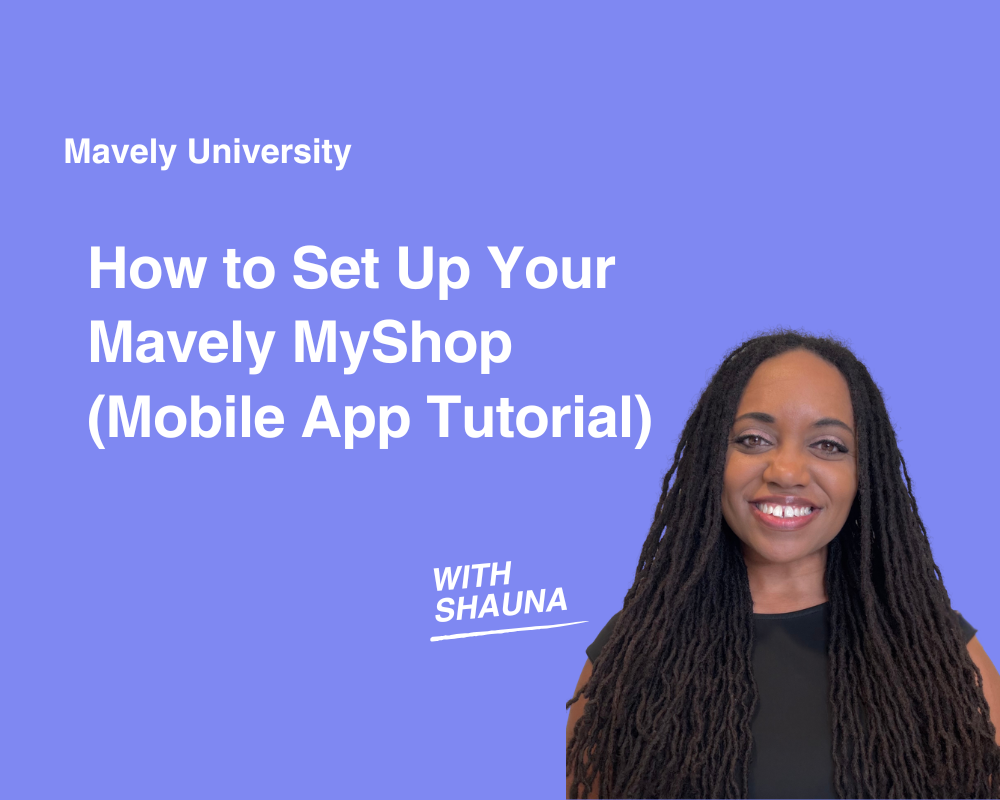
Your Mavely MyShop is your own shoppable storefront, and setting it up is easier than you might think. In this Mavely University training, Creator Education Manager Shauna Hollinger walks through the entire MyShop setup process on the Mavely mobile app, from your profile settings to your first post. Watch this quick video for the full walkthrough, or follow the steps below to get your shop up and running.
Step 1: Open MyShop and configure your settings
Tap the MyShop icon in the top right corner of the app, then select Set Up Your MyShop Now. From here, you’ll set up the basics:
- Profile photo: Upload a photo that represents you or your brand.
- Shop name: Choose something memorable that reflects your niche or personal brand.
- URL slug: This is the custom URL for your MyShop. One important note: once you save your URL, you won’t be able to change it on your own. If you ever need to update it, reach out to the Mavely team for help.
- Bio: Think about the keywords your audience might search for and use them here. Something like “Affordable fashion for women over 40” tells visitors exactly what to expect and helps with discoverability.
When you’re happy with your settings, hit Save.
Step 2: Add your social accounts
To connect your social handles, tap the icon in the top right corner, navigate to My Socials, and hit Add Social Account. Once connected, your social accounts will appear directly within your MyShop so visitors can easily find and follow you.
Step 3: Create your first links
Before you can build a post, you’ll need to have links created. Tap the Home icon, browse for a brand you want to recommend, and hit Create Link. Repeat this process for any products you want to feature in your first post.
Step 4: Create a post
Head back to your MyShop and tap Create a Post (or tap the purple icon at the bottom of the screen). Every post requires three things: at least one link, a caption, and an image. Here’s how to put it together:
- Links: Tap Add Links, select the links you want to include, and hit Apply. You can include up to 100 links per post.
- Caption: Add a title and a description that gives your audience context for what you’re recommending.
- Image: You can upload your own image, or use the Collage Builder, which automatically pulls images from your links to create a collage. If you don’t love the first result, hit Regenerate Collage to try a new layout.
Before saving, tap the preview at the bottom to see how your post will look in different formats: Feed, Shelf, and Collection. Once you’re happy with it, hit Save.
Step 5: Create a page
After saving your post, you’ll be prompted to add it to a page. Pages are how your MyShop is organized, and each one needs a title, at least one post, and a layout. You can choose from Feed, Shelf, or Collection layouts depending on how you want your content displayed. If you’re not ready to publish a page yet, you can toggle the visibility to Not Published until it’s ready.
To add your post to the page, go to the Posts tab, tap Add Posts, select your post, and hit Apply. Then save your page.
You can create as many pages as you’d like, up to 25 total, and reorder them at any time by tapping Edit Order and dragging the pages into your preferred sequence.
Step 6: Pin and organize your links
Within any post, you can pin up to four links to control the order they appear. Tap into a post, hit Edit, and use the Pin icon to move a link to the top. To undo it, tap the same icon and select Unpin.
Step 7: Share your post
Once your post is live, tap the Share icon to copy the link and share it wherever your audience is — Instagram Stories, a broadcast channel, email, or anywhere else you connect with your followers.
A note on editing link images
If you want to update the image on one of your links, you’ll need to do that outside of MyShop. Navigate to the Links tab from your homepage, tap the three dots on the link you want to edit, and select Edit Link. At the moment, uploading new images isn’t available on mobile, but you can choose from available meta images and update the title and description right from the app. For full image uploads, switch to the desktop version of Mavely.
You’re all set
That’s everything you need to get your Mavely MyShop up and running. If you run into any questions along the way, the Mavely team is happy to help.
Want more creator tips like this? Watch more Mavely University videos. Not on Mavely yet? Sign up here and start earning today.







 © 2026 Mavely, LLC, a Later company. All rights reserved. | 625 W Adams St, Chicago, IL 60661